Docs
Inheriting properties
In the previous guides we have discussed how to get started with subject composition as well as how to create a property. In this guide, we want to show you how these concepts can come together. Let’s take a look at the composition we defined in previous How-to guides:
Floor
] --> D[Room
Parent type: Floor] --> F[Temperature Sensor
Parent type: Room]In some cases, it can be beneficial to inherit properties from a parent. In the example above, suppose we want to create a new property, named “Temperature setpoint,” that will be defined on each level of the subject composition, but will be populated solely on the parent. To do this, we must create a new property, assign it to the various subject types, and then populate only the highest level of the composition, in our case Floor. Our objective will be to populate a temperature setpoint of 20 for all subjects with Floor 1 as their parent, and a temperature setpoint of 18 for all subjects with Floor 2 as their parent.
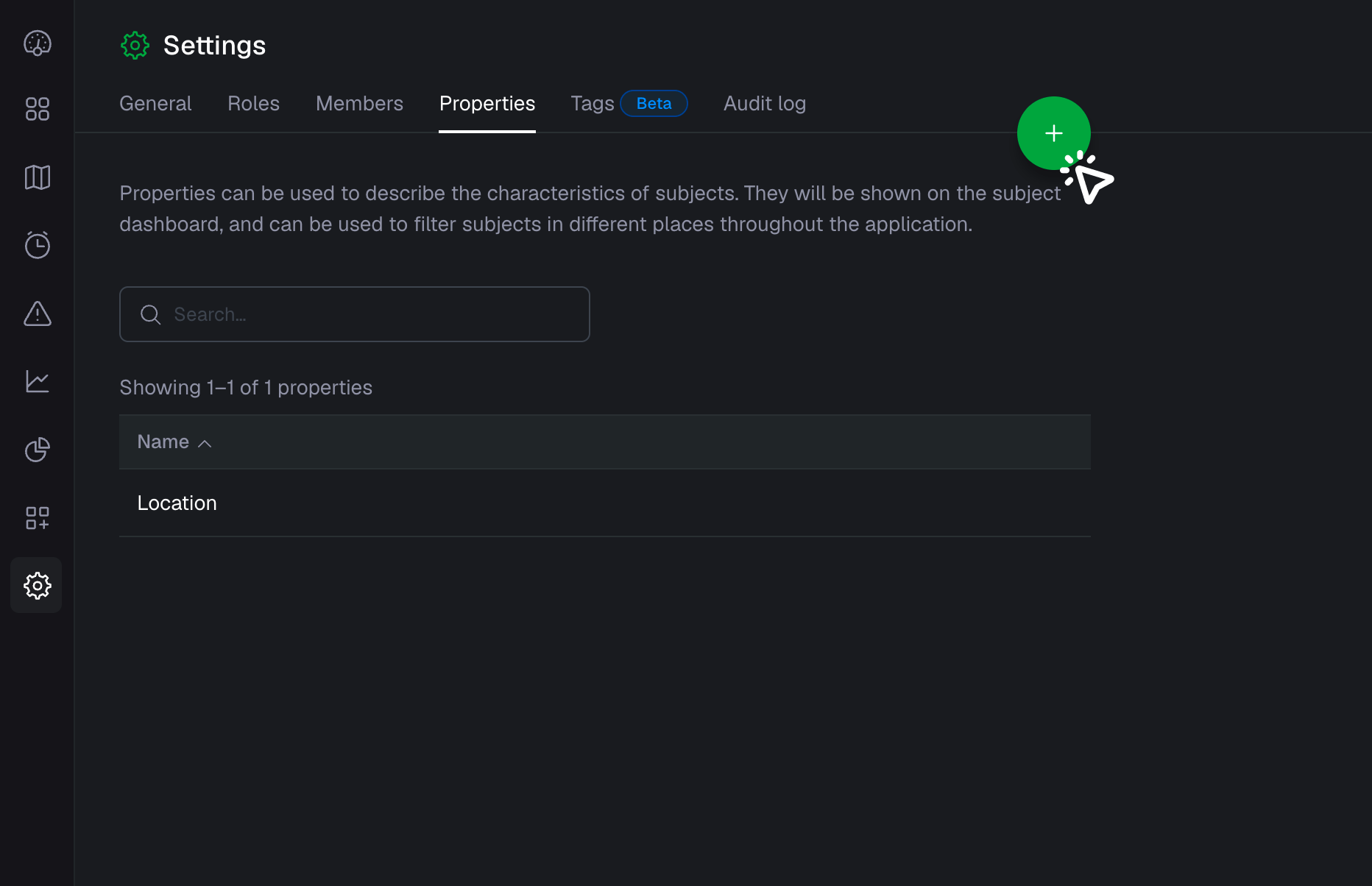
- Go to your "Properties" in project "Settings" and create a new property
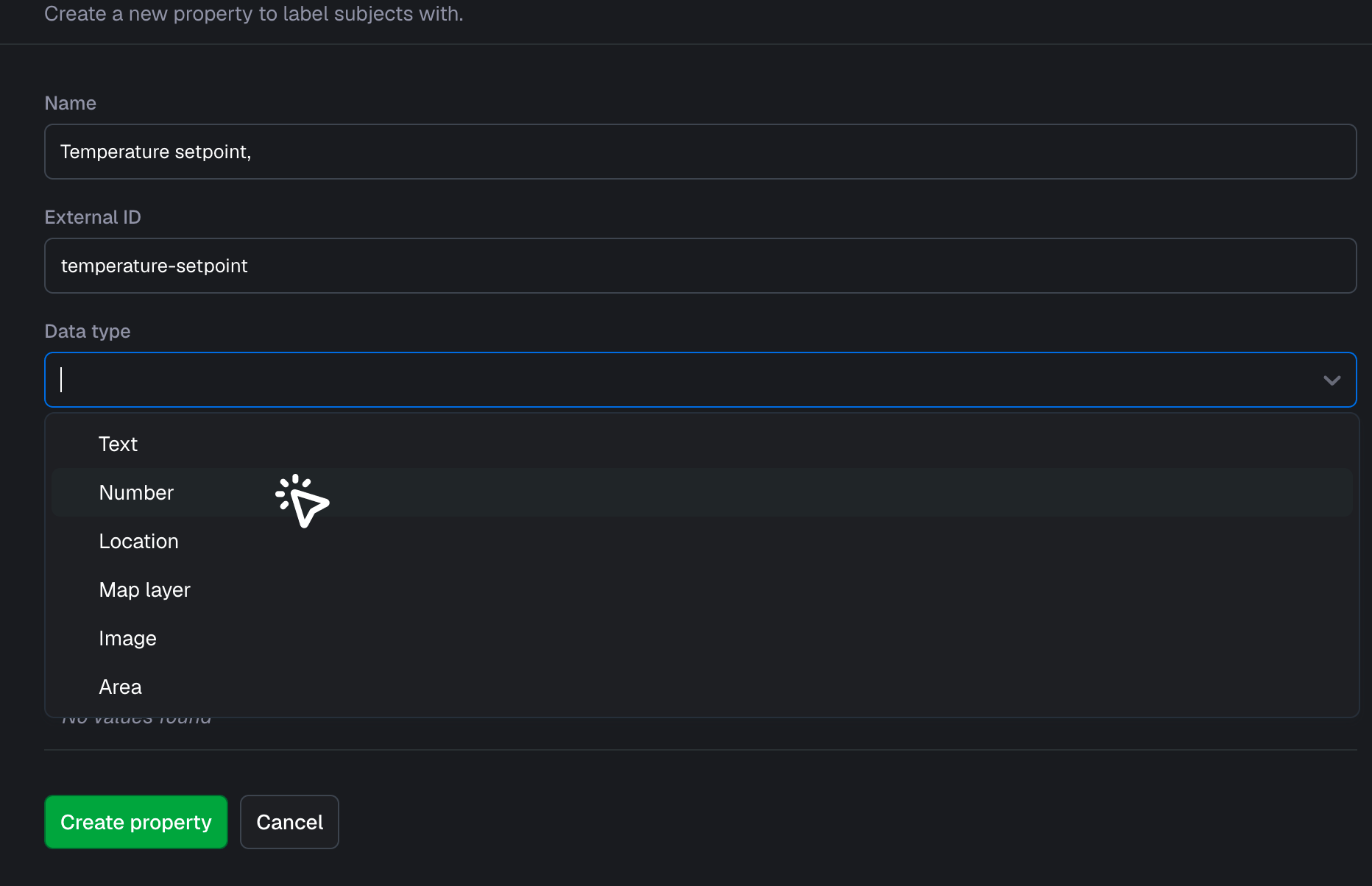
- Fill in the name and set the data type to "Number"
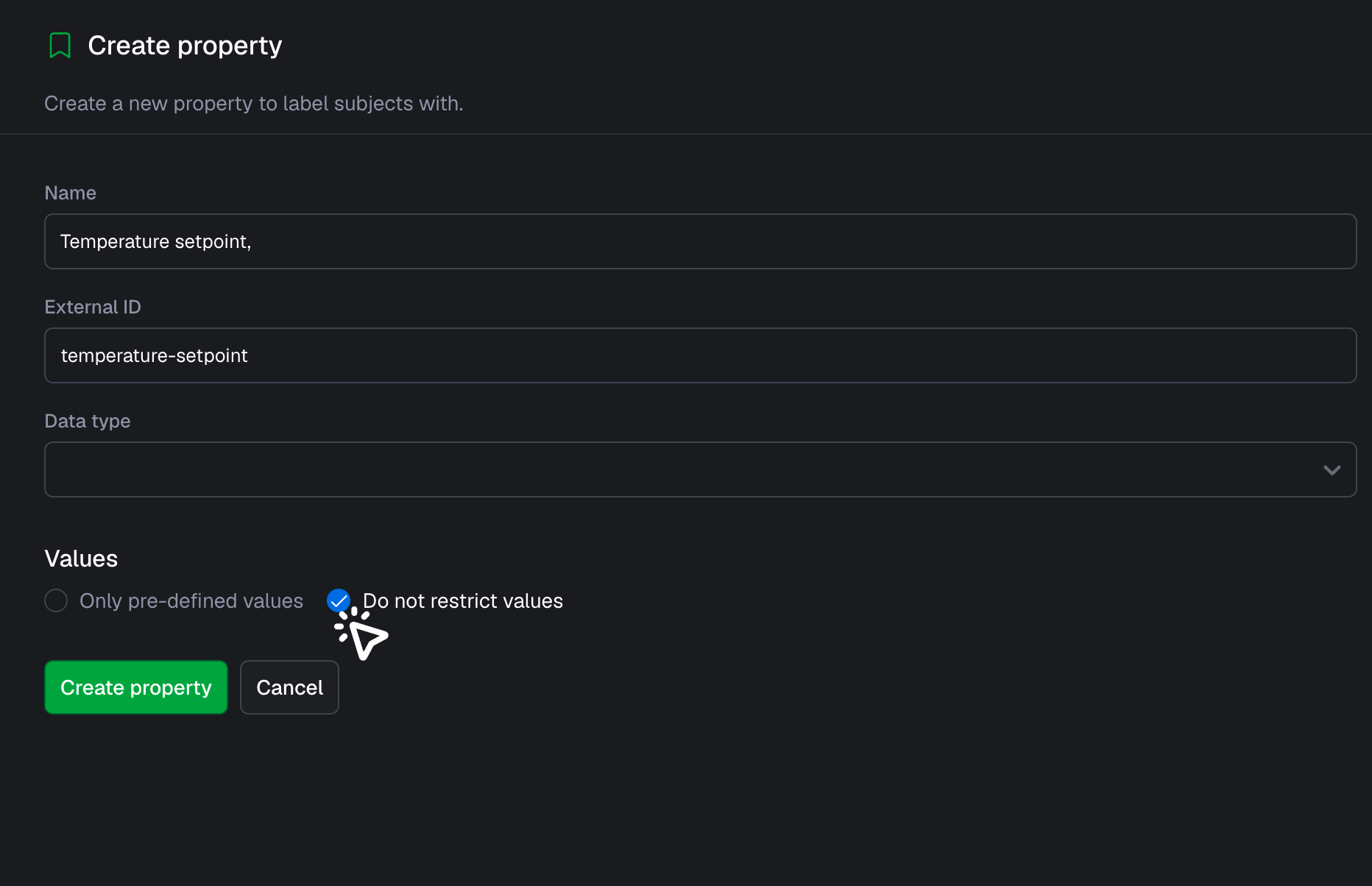
- Choose "Do not restrict values" and create the property
- Go back to "Subjects" overview
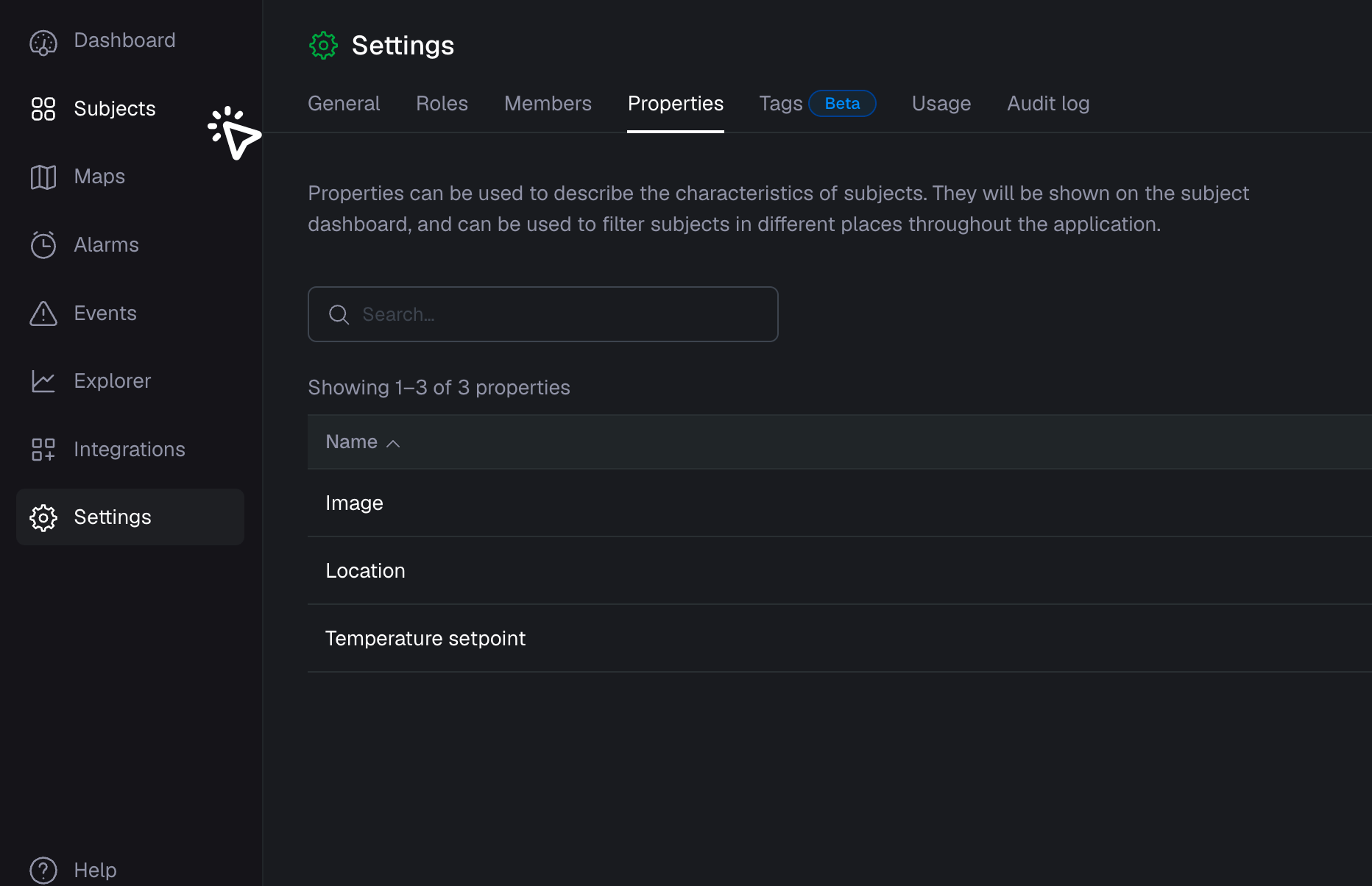
- Go to subject "Types"
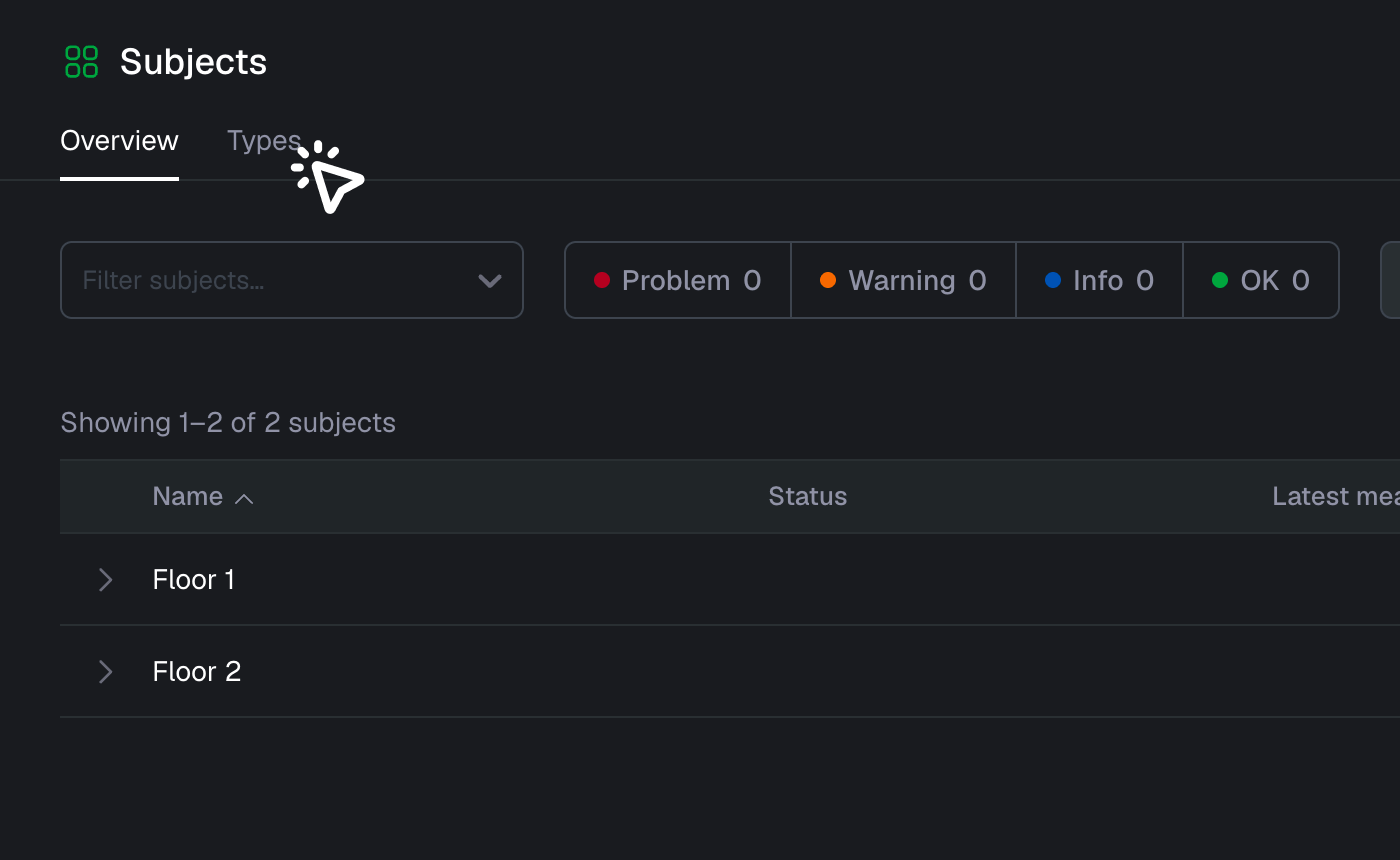
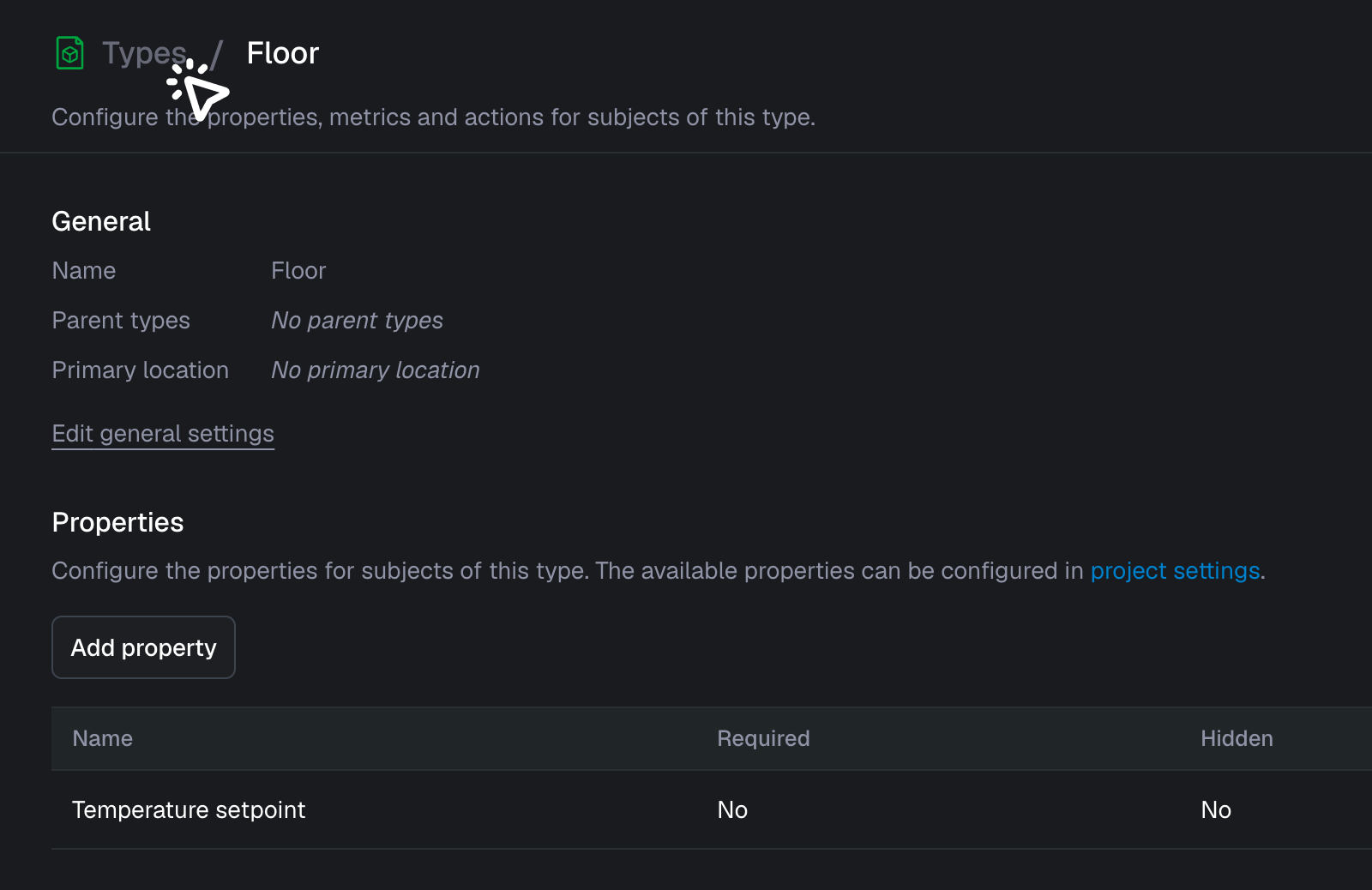
- We will now connect the newly created property to the subject type "Floor"
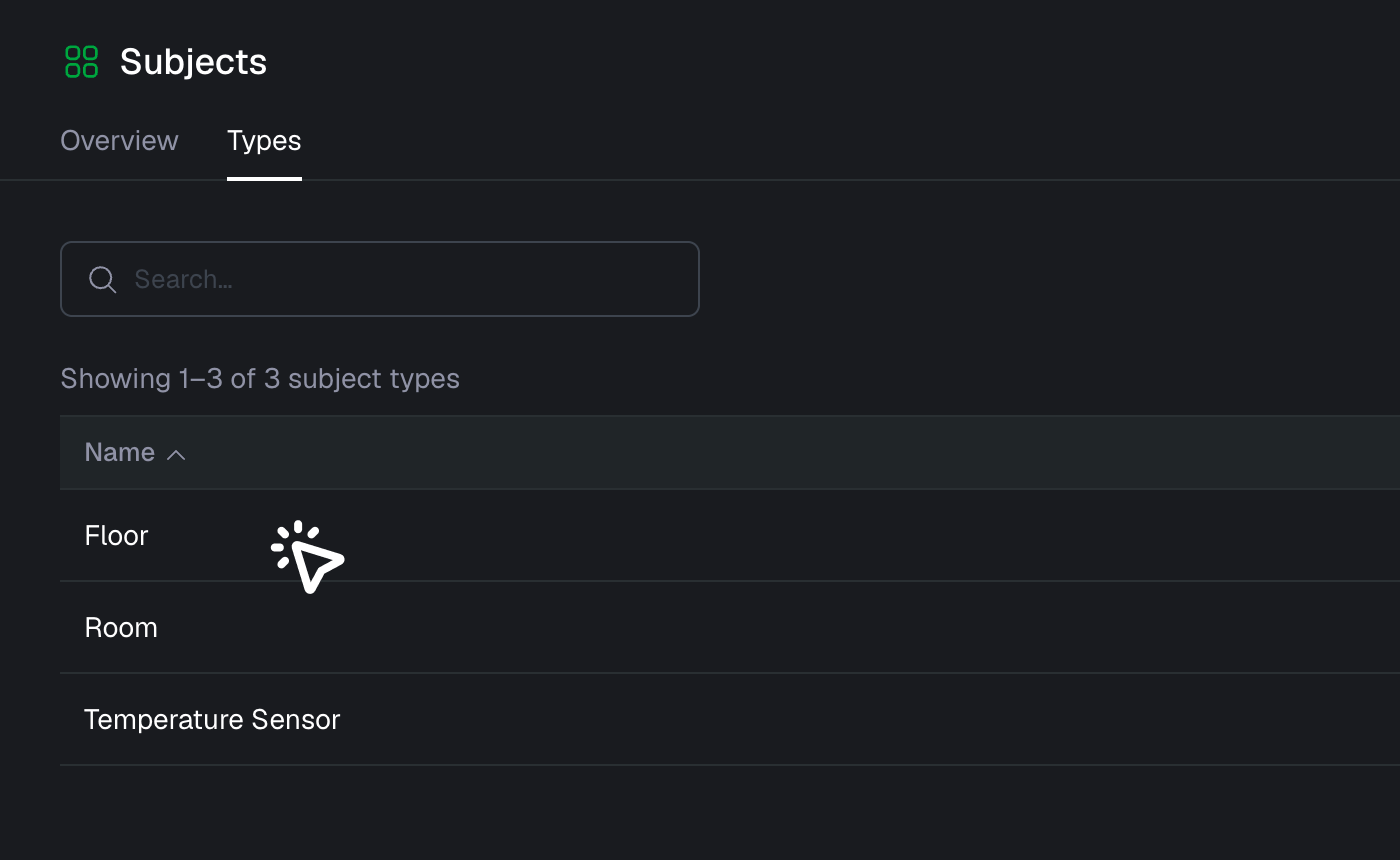
- Let’s add a property
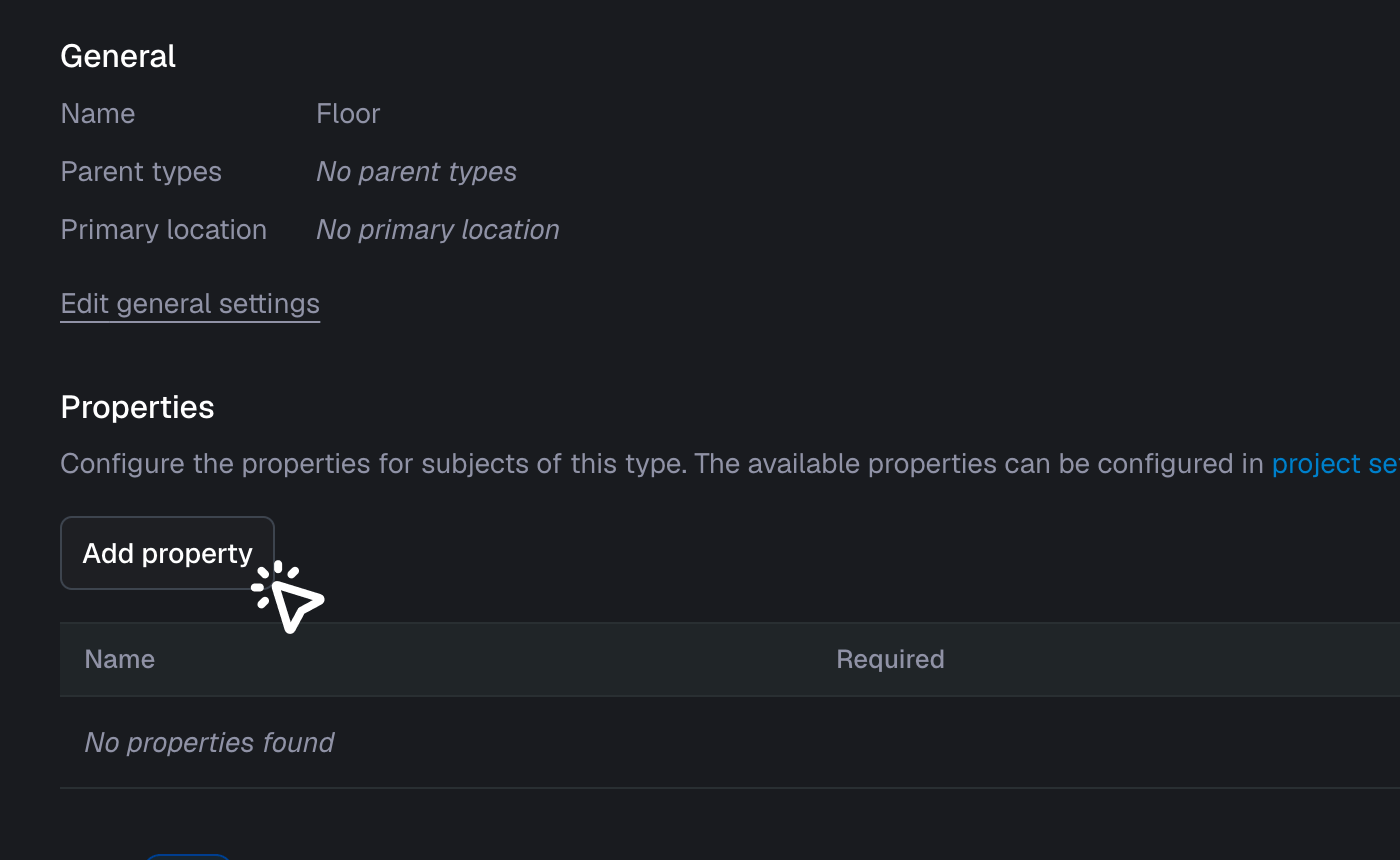
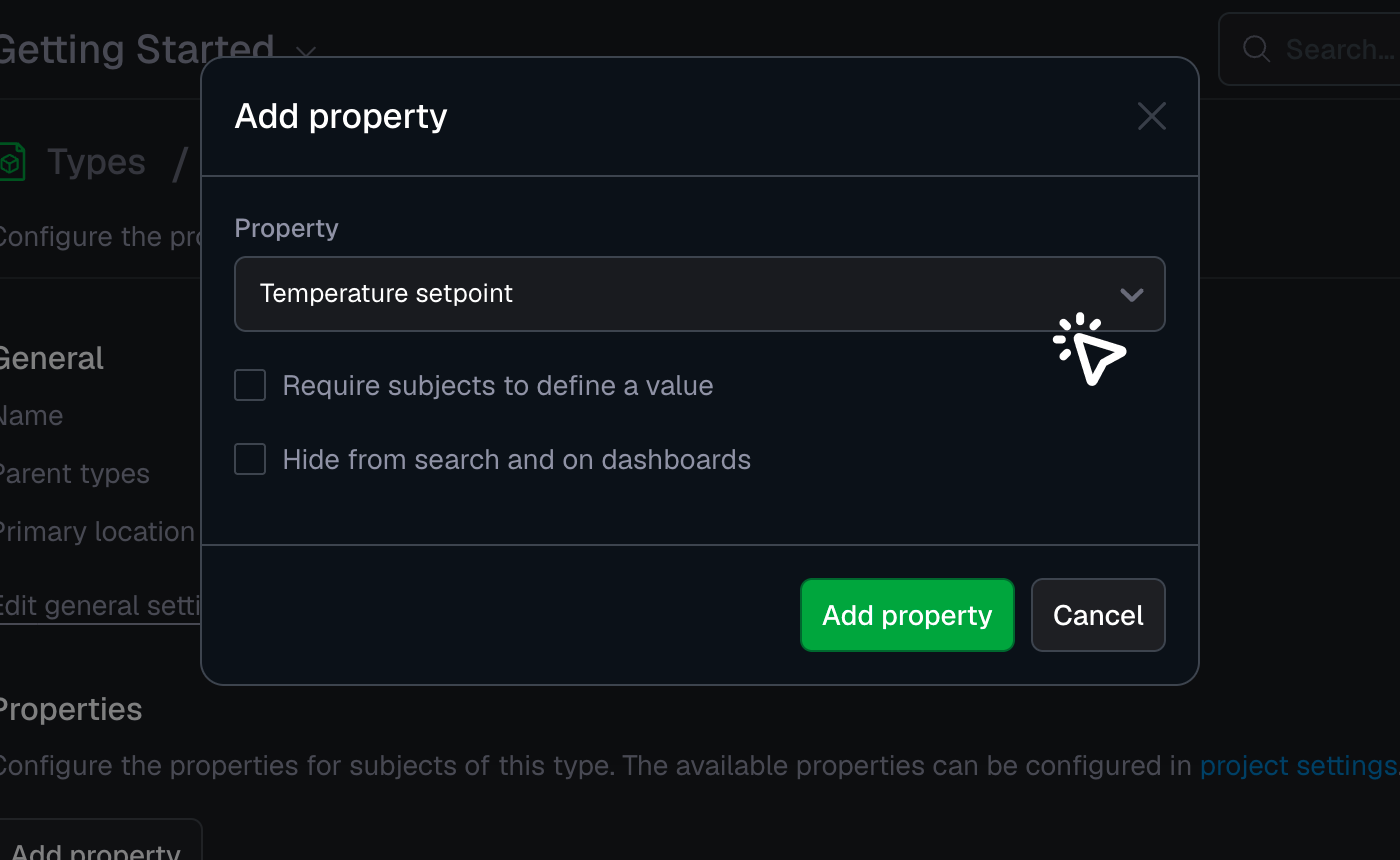
- Select "Temperature setpoint" as a property and press "Add property"
- Navigate back to our subject "Types"
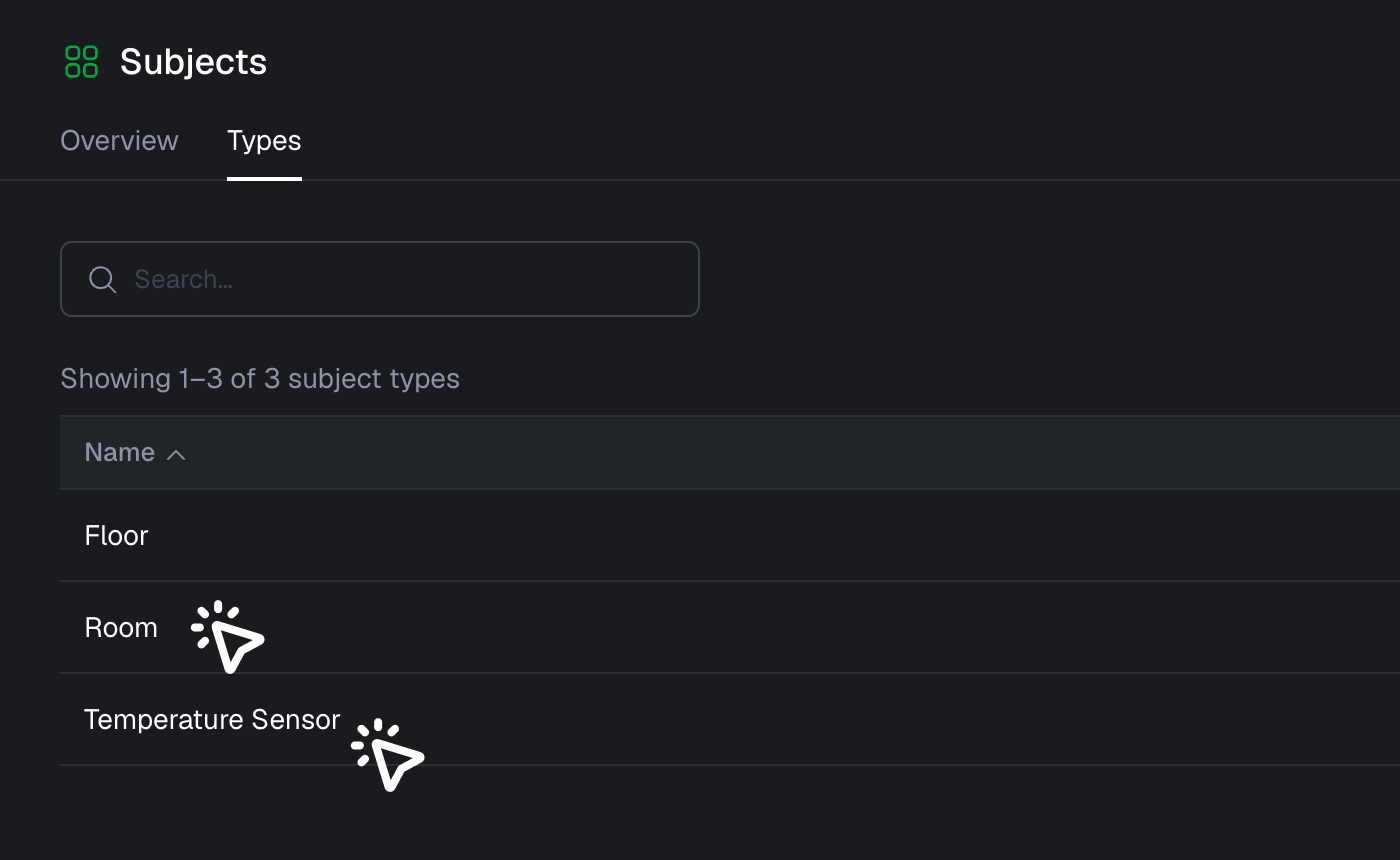
- Repeat the previous steps and connect the newly created property to the subject type "Room" and "Temperature Sensor"
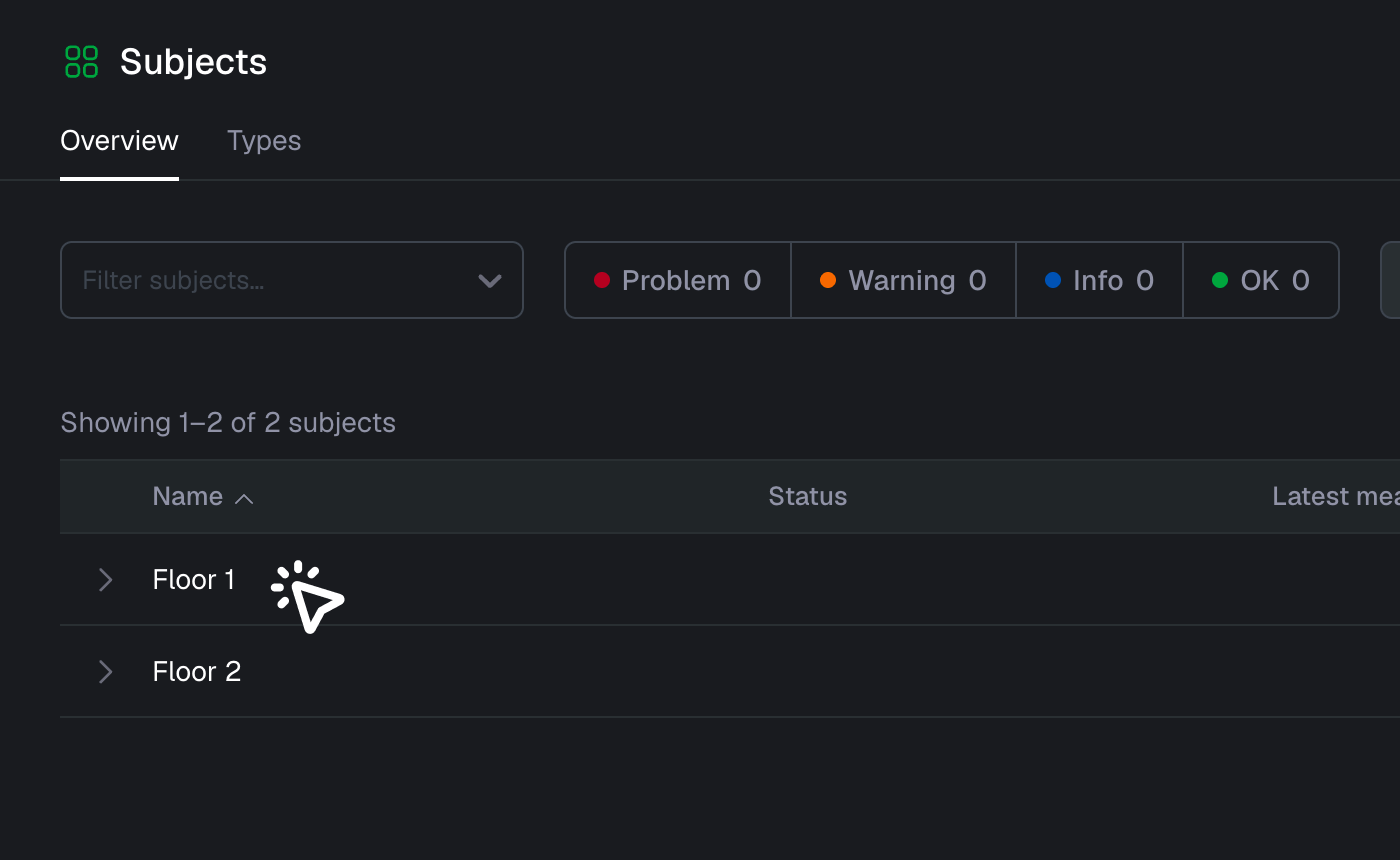
- Now that the properties are created for "Floor", "Room" and "Temperature Sensor" we can go to our Subjects overview and fill the newly created property for "Floor 1"
- Edit the subject
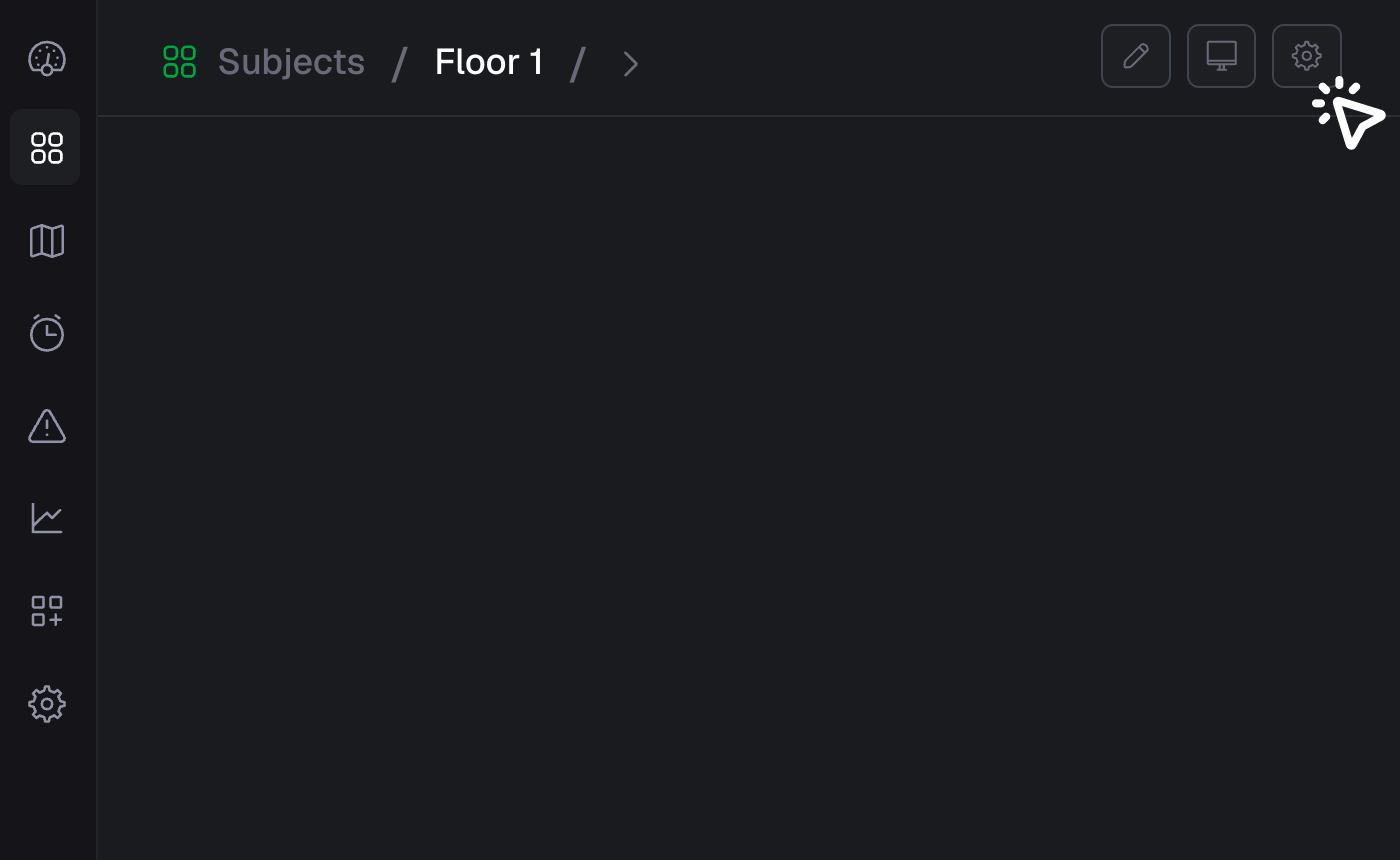
- Populate the property with the value, in this case "20"
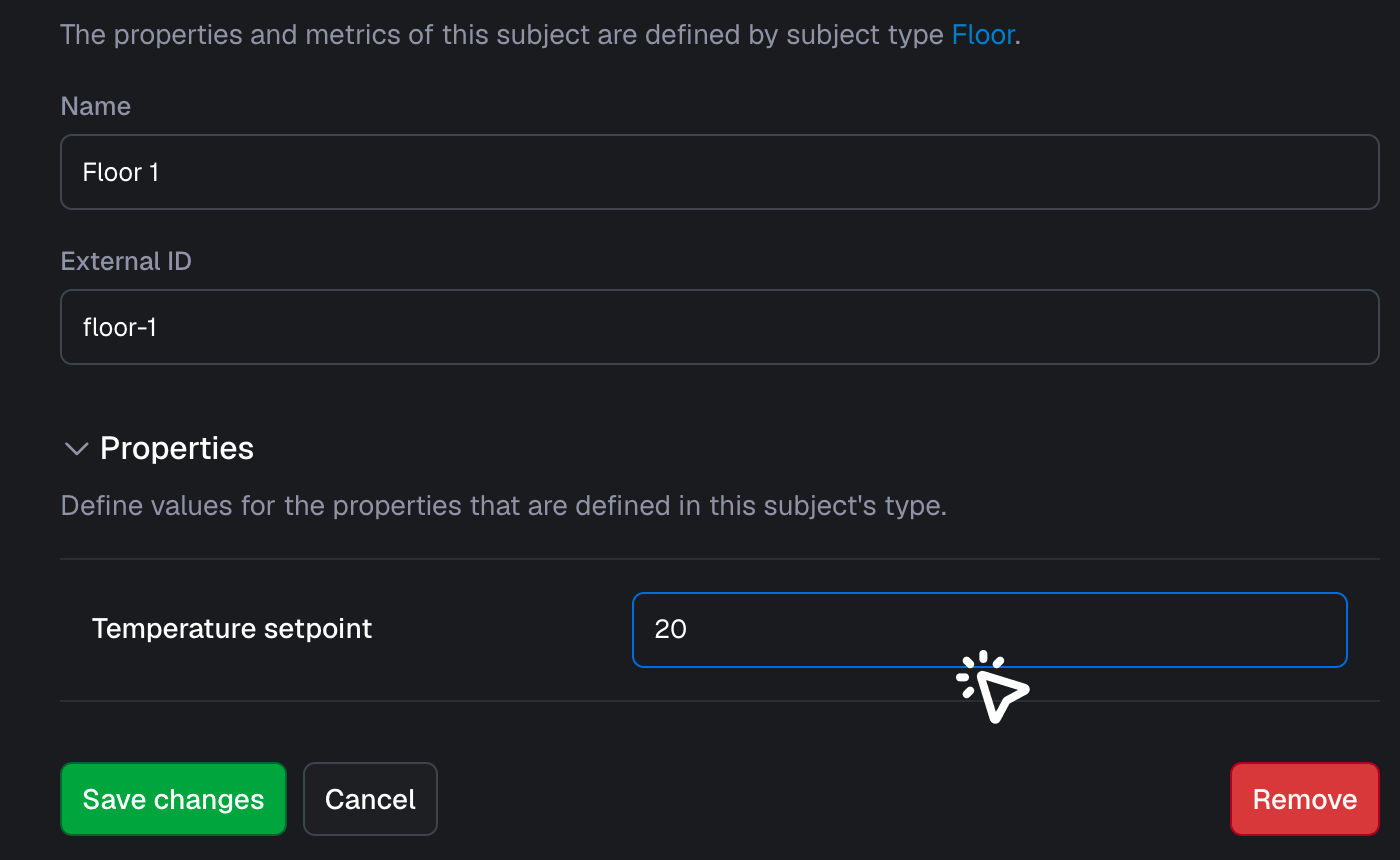
- "Temperature Setpoint" is now visible on the dashboard. Let’s go back to "Subjects"
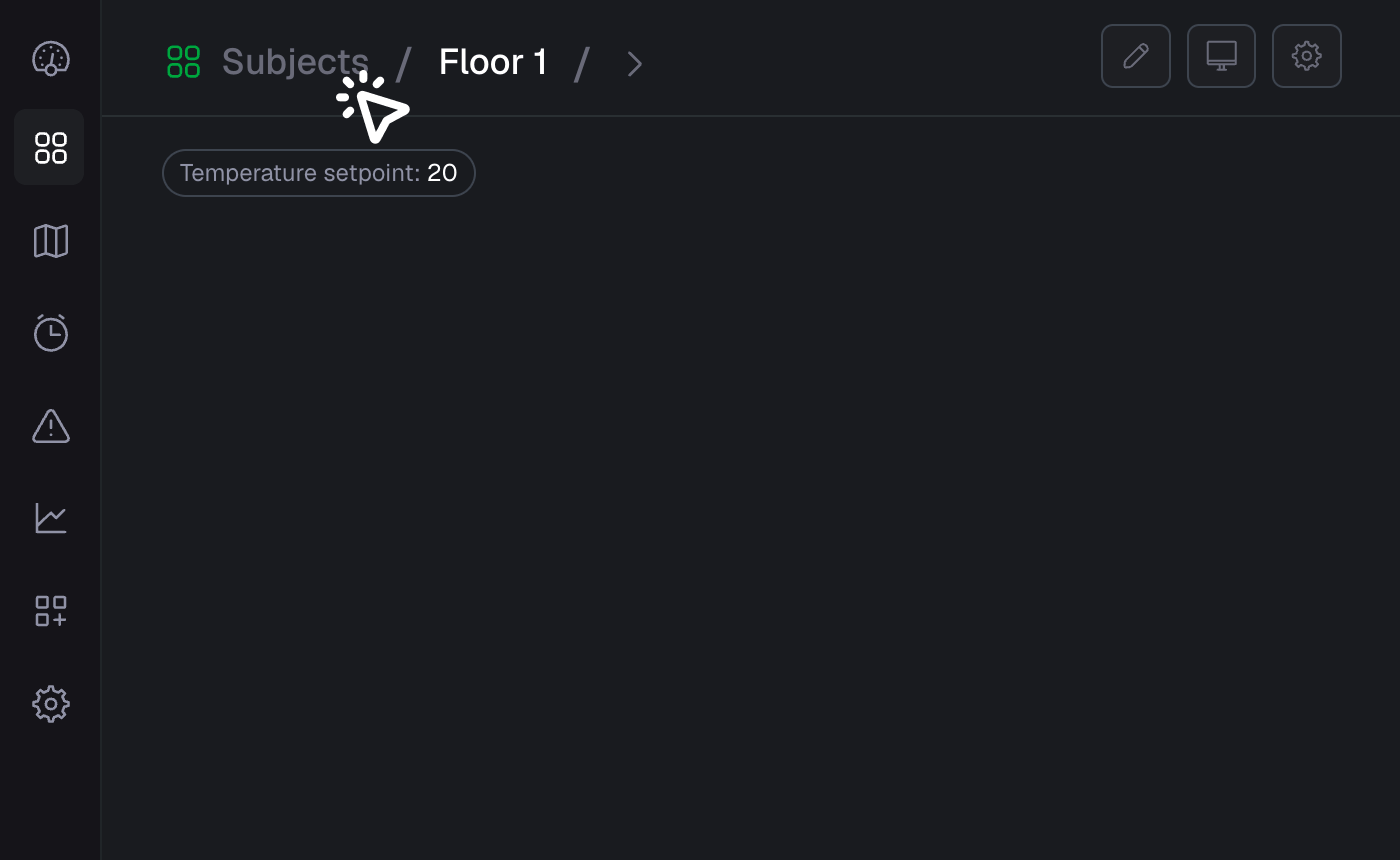
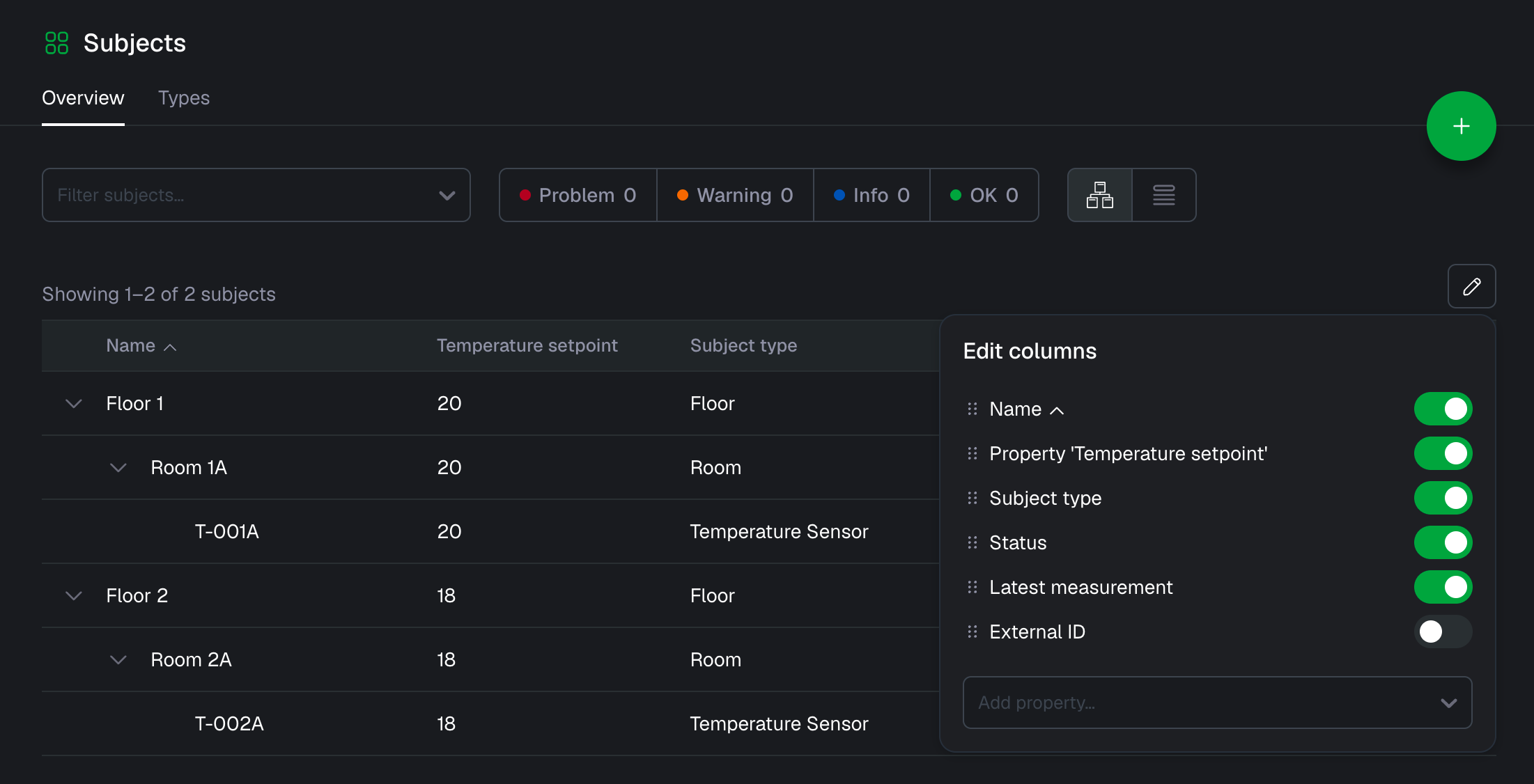
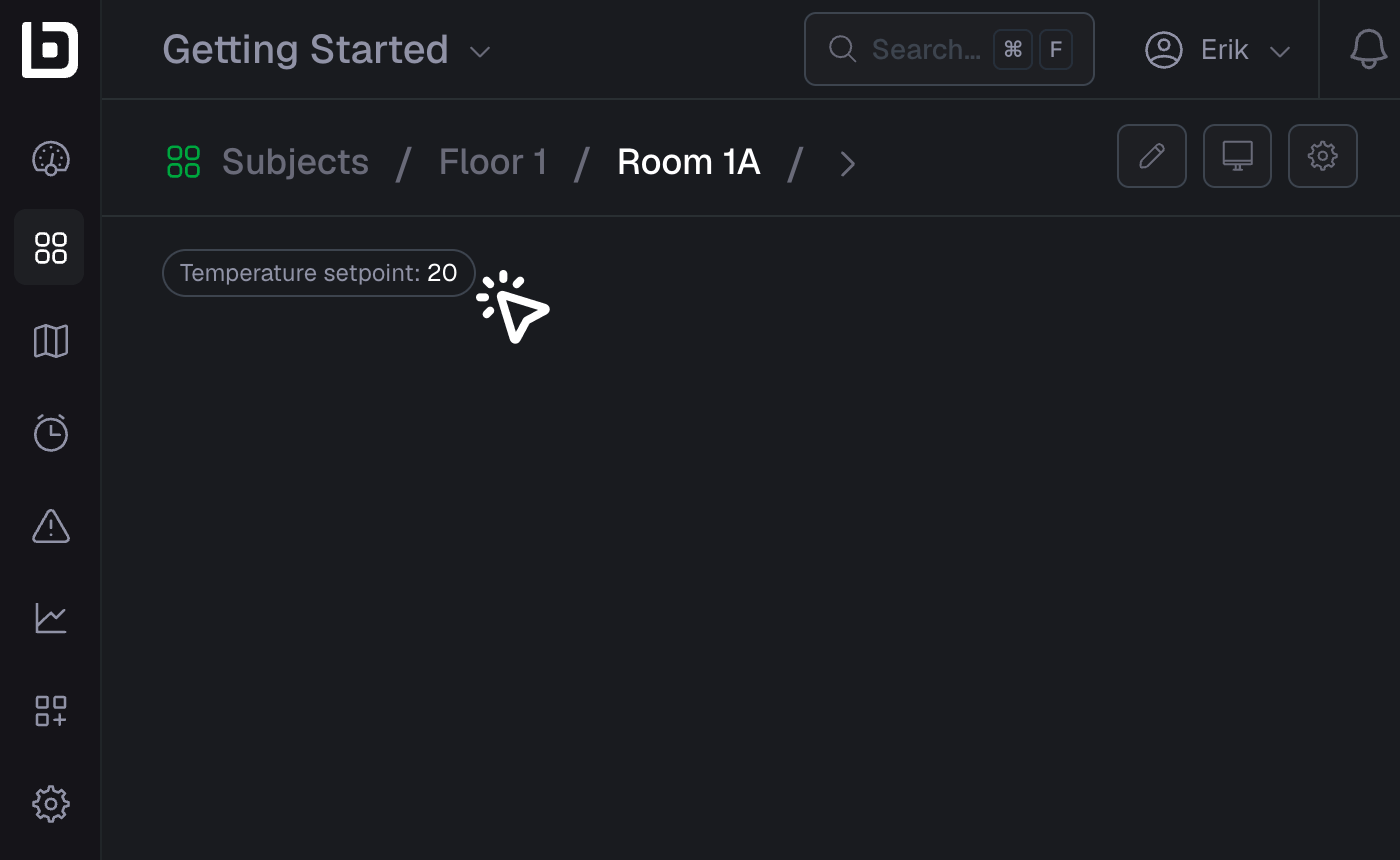
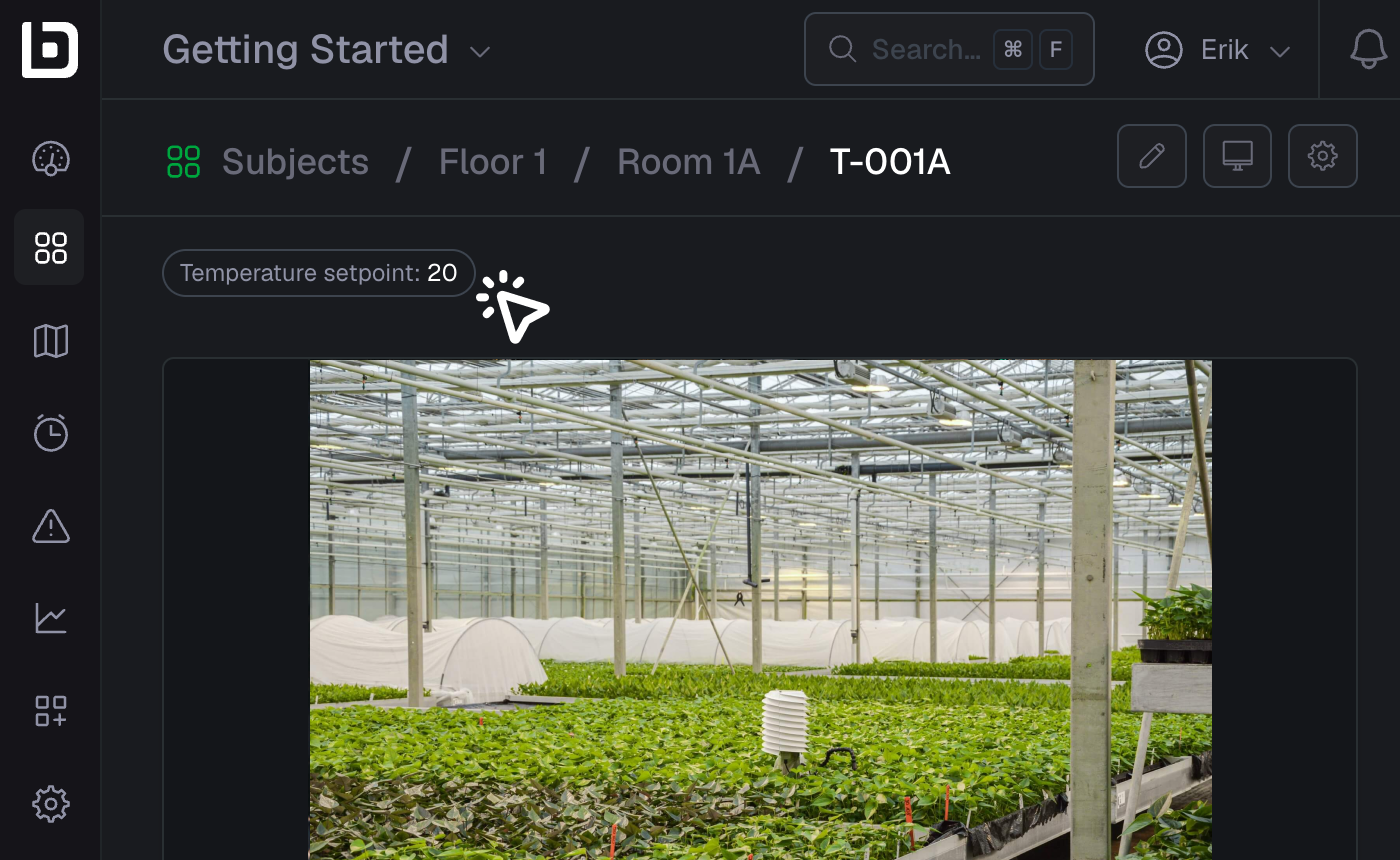
- Navigate down the subject composition by using the arrows shown. You might notice that for all underlying subjects, the "Temperature setpoint" has been automatically inherited
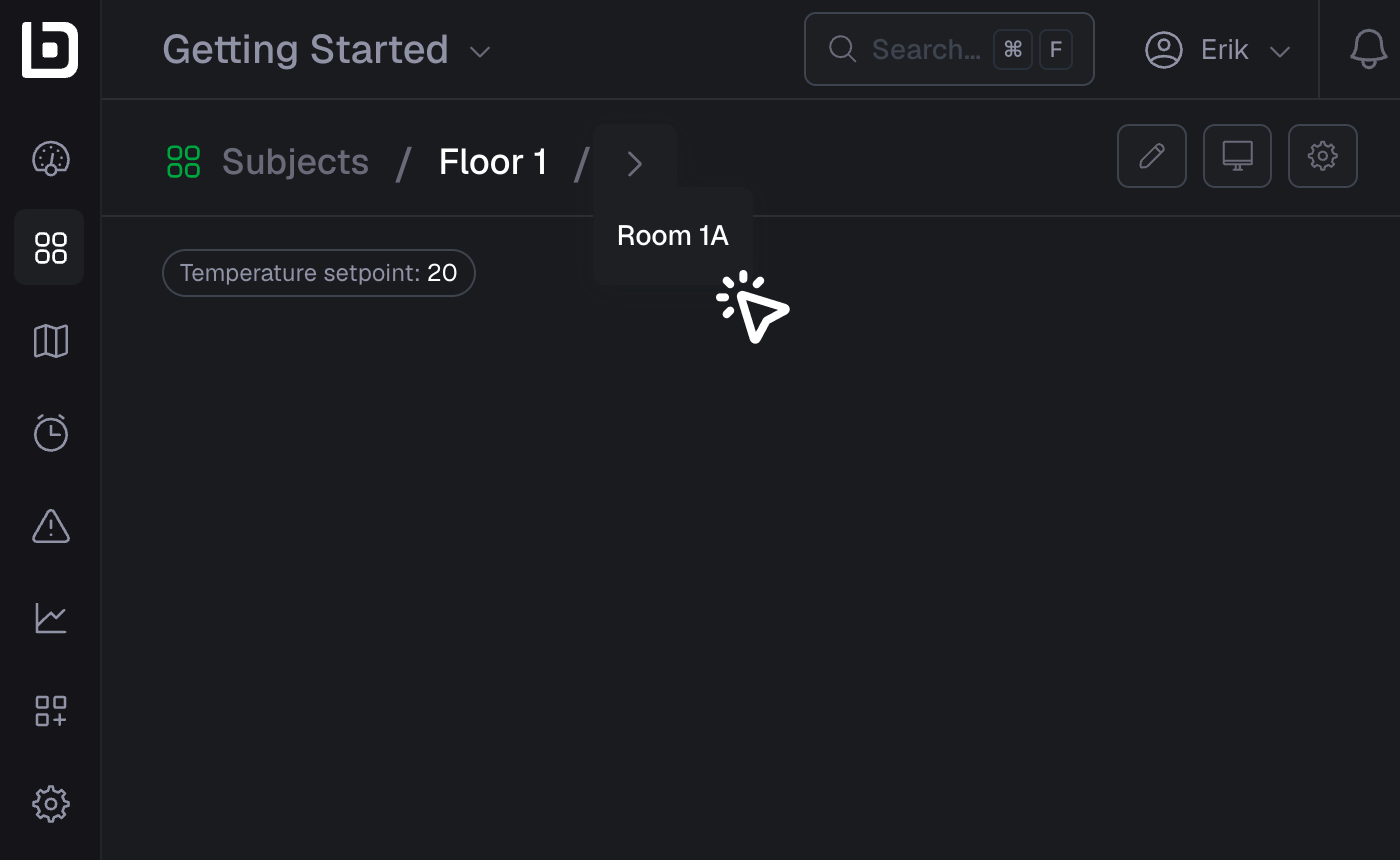
- Navigate to "Room 1A"
- Navigate to "T-001A"
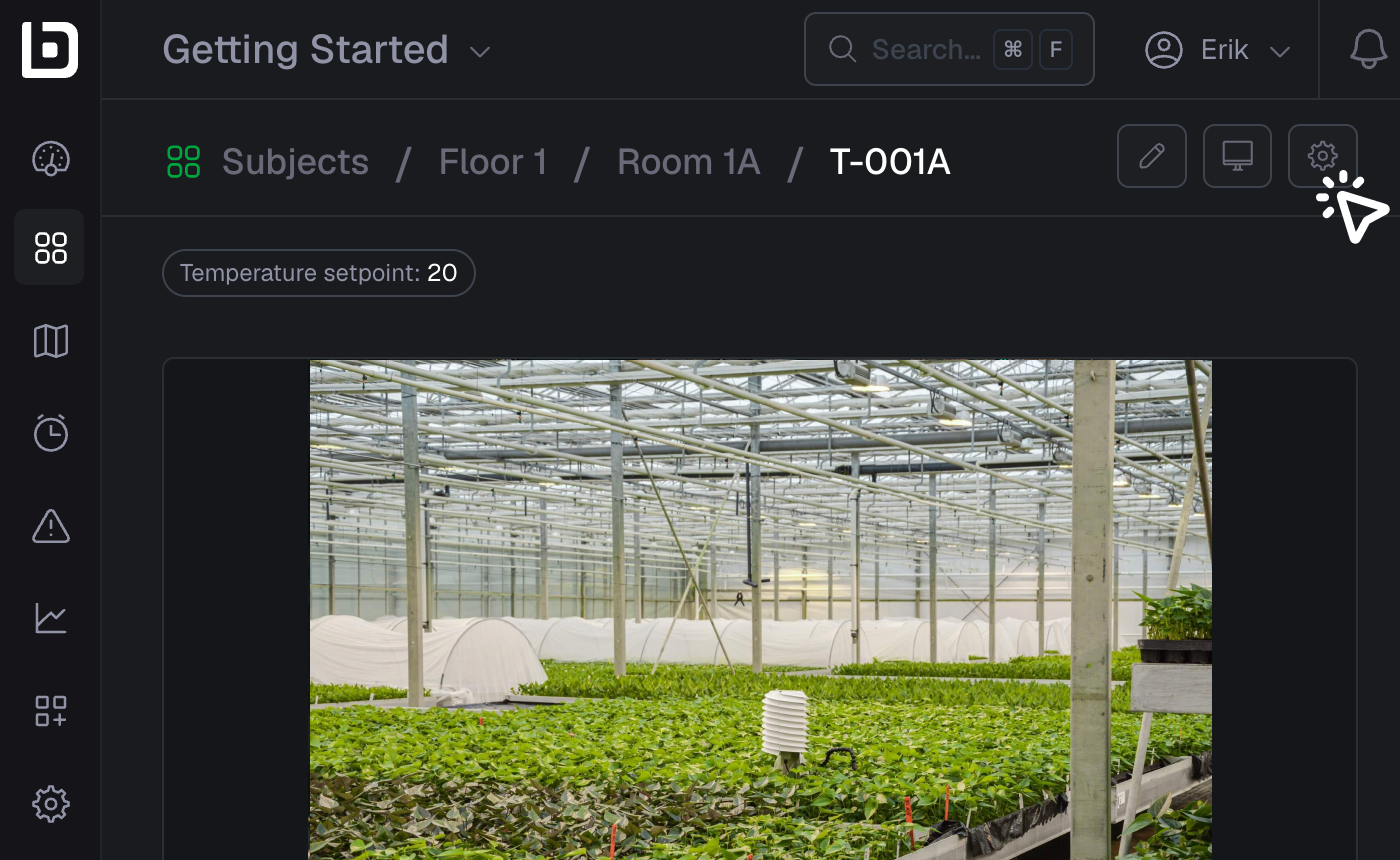
- Let’s edit our subject
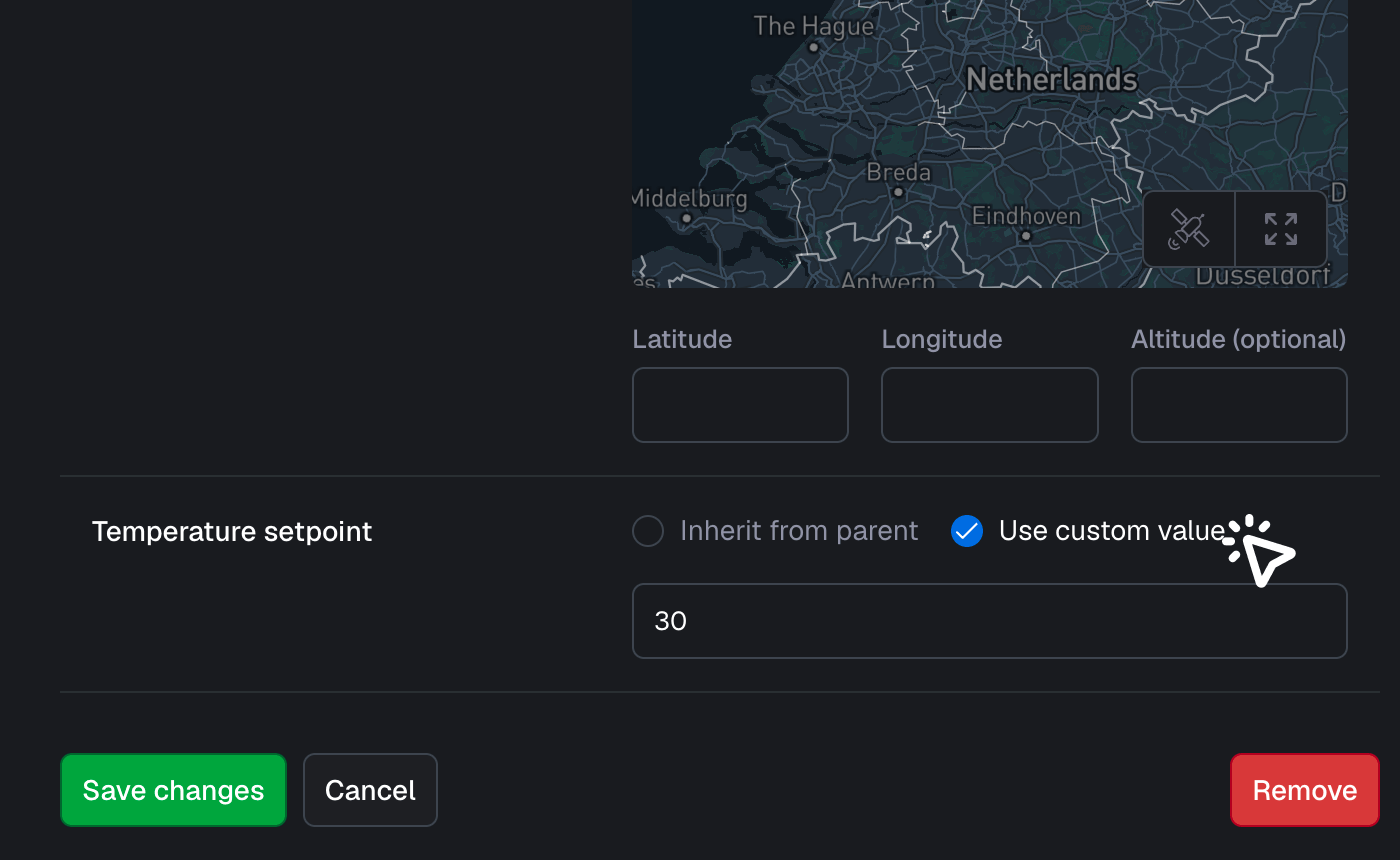
- Since this temperature sensor is a child of a subject that has populated the Temperature setpoint property, it will inherit the value from the parent by default. If you would like to change this value, you can always enable the Use custom value option.
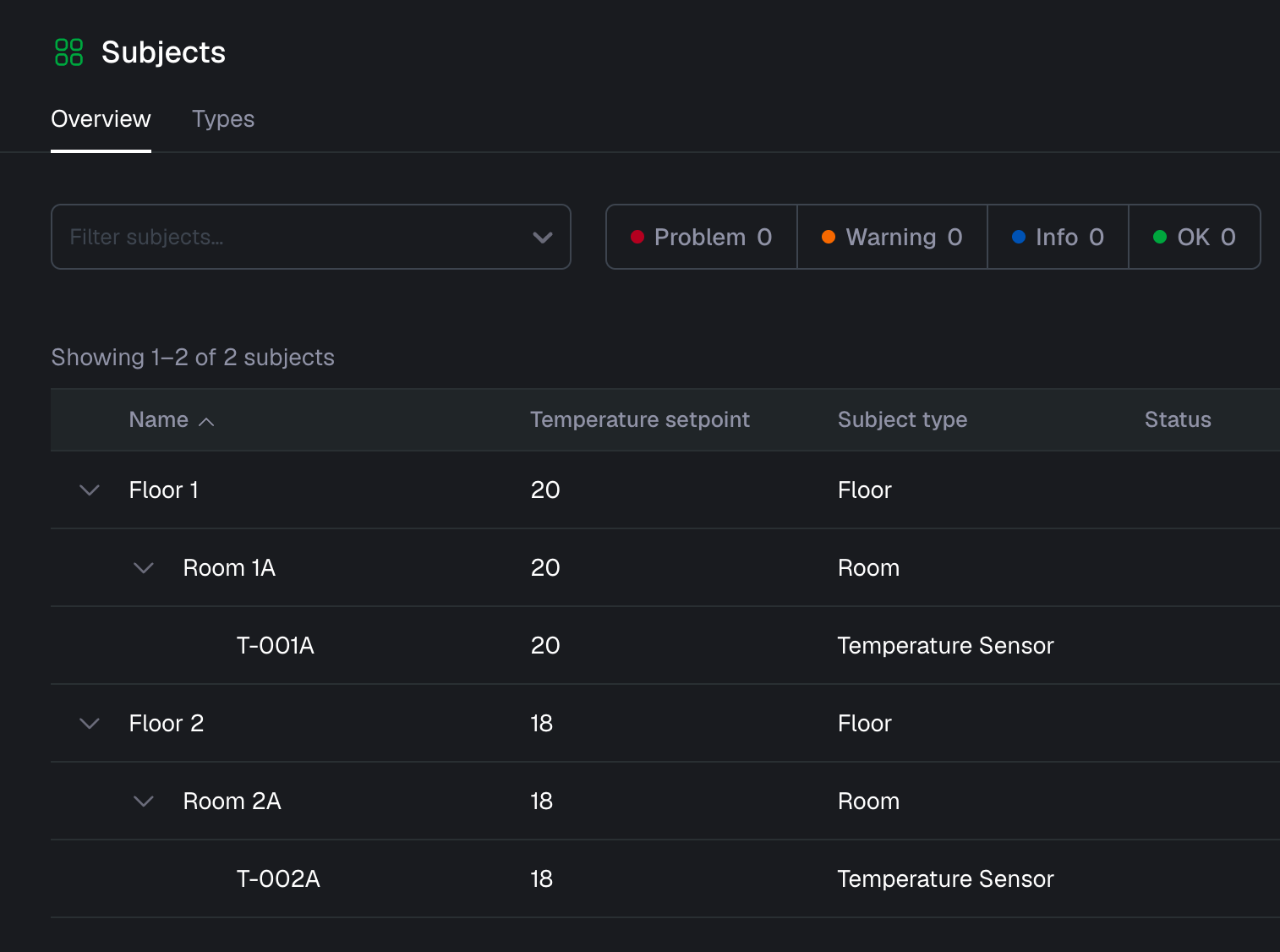
- Let’s take a look at our subjects overview. We have a nice structured overview of all the parent and child subjects.
- If you don’t see the correct columns, you can edit the column order.