


Docs
AI Agent
The AI Agent is your assistant within the Blockbax Platform. Ask questions in plain language and the agent looks up the relevant subjects, metrics, events and alarms in your project to answer them. It helps you understand what is going on and decide on a next step, without having to know exactly where to look.
Using the agent
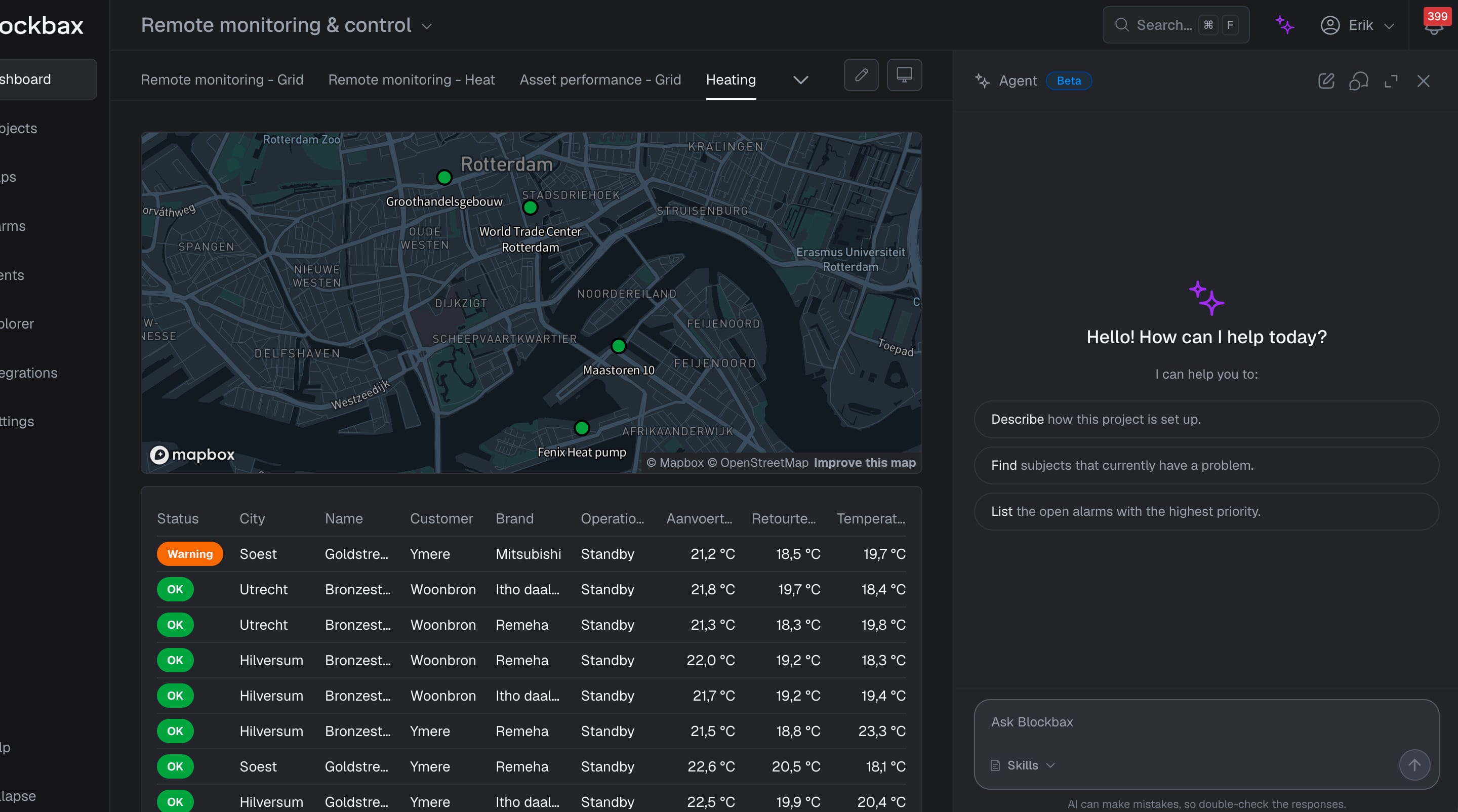
Open the agent with the sparkle icon in the top bar. The agent opens in a side panel, so you can keep working in the platform while you chat.
Ask a question
Type your question in the Ask Blockbax field and send it. When you start a new conversation, the agent also suggests a few questions to get you going, such as describing how the project is set up or listing the open alarms with the highest priority.
See which data is used
While the agent works on an answer, it shows the steps it takes, such as searching for subjects, reading the project configuration, looking at alarms or reviewing the event history. Expand these steps to see which data the agent used.
Suggested actions
After an answer, the agent often shows Suggested actions above the input field. These are follow-up questions based on the conversation so far, such as charting a metric for a specific subject or ranking subjects by their highest value. Click a suggestion to send it right away, or ignore it and type your own question to continue the conversation. You can collapse the suggestions with the arrow next to Suggested actions.
Conversations and feedback
From the panel header you can start a new conversation, view your previous conversations, expand the panel or close it. Below each answer you can copy the answer, give feedback with a thumbs up or down, or let the agent write a new answer.
What can the agent do?
The agent can read the information in your project and combine it into an answer. It can help you with:
- Project setup: explain your subject types, properties, metrics and event triggers.
- Finding subjects: search by name, external ID, subject type, predefined property value or position in the hierarchy, and read a subject’s property values.
- Latest readings: give the most recent value of specific metrics for a subject.
- Statistics: show the minimum, maximum, average, sum or count of a metric over a period. The agent can also rank subjects, for example “Which turbines had the highest peak?”.
- Status: show which subjects are currently OK, Info, Warning or Problem.
- Causes: explain which event triggers are behind a status, now or over a past period, with event counts and total time in that state.
- Alarms: list and count alarms by status, priority or trigger. The agent can show an alarm’s comments and check whether similar alarms happened before and how they were handled.
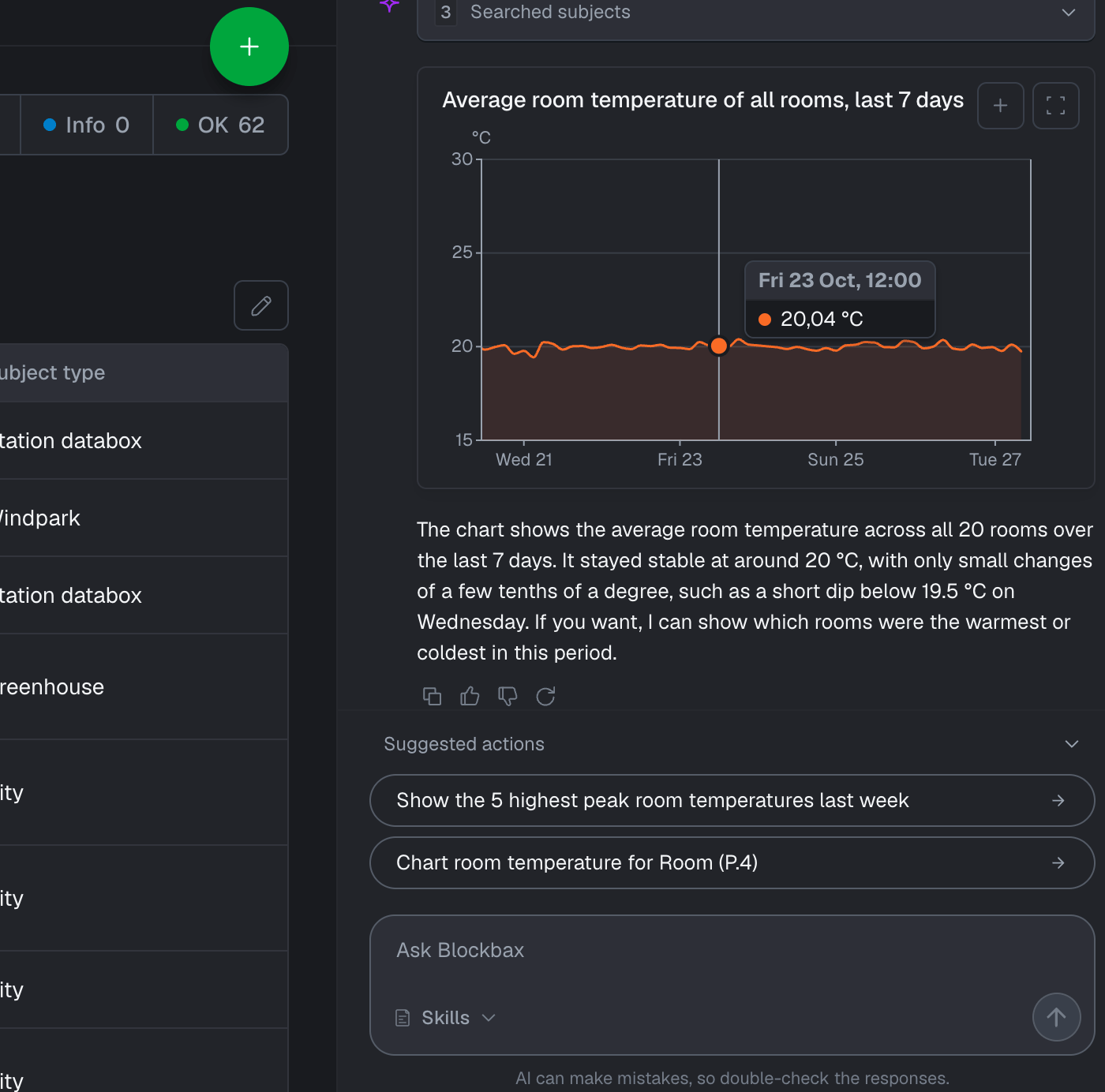
- Graphs and widgets: draw line charts of metrics over a period, and other visuals such as tables or single values, in the conversation. You can add graphs to a dashboard.
Because the agent combines these, you can also ask broader questions. For example, ask whether a pressure drop differs from the usual daily pattern, or ask for a short summary of an alarm to paste into a work order for a mechanic.
The agent answers with text, lists, tables, graphs and other widgets, depending on what fits the question best.
Add a widget to a dashboard
When the agent shows a visual in the conversation, such as a graph, you can add it to a dashboard as a widget, with live data. This way you can go from a question to a widget you keep monitoring, without configuring it yourself.
For example, to add a graph to a dashboard:
- Click the plus button (Add graph to dashboard) in the top right corner of the graph.
- Select the Target dashboard.
- Click Add to dashboard. The dashboard opens in edit mode, with the graph added as a new widget at the end.
- Review the dashboard. You can still move or resize the widget before saving.
- Click Save to keep the changes, or Cancel to discard them. The widget is only added once you save.
To take a closer look at a widget first, click Show full screen next to the plus button.
What the agent cannot do
The agent only reads data and cannot change anything in the platform. When the agent suggests an action, you carry it out yourself in the platform or in your usual process, such as creating a work order.
The agent acts on your behalf and respects your permissions. It can only see what you are allowed to see in the project.
Agent settings
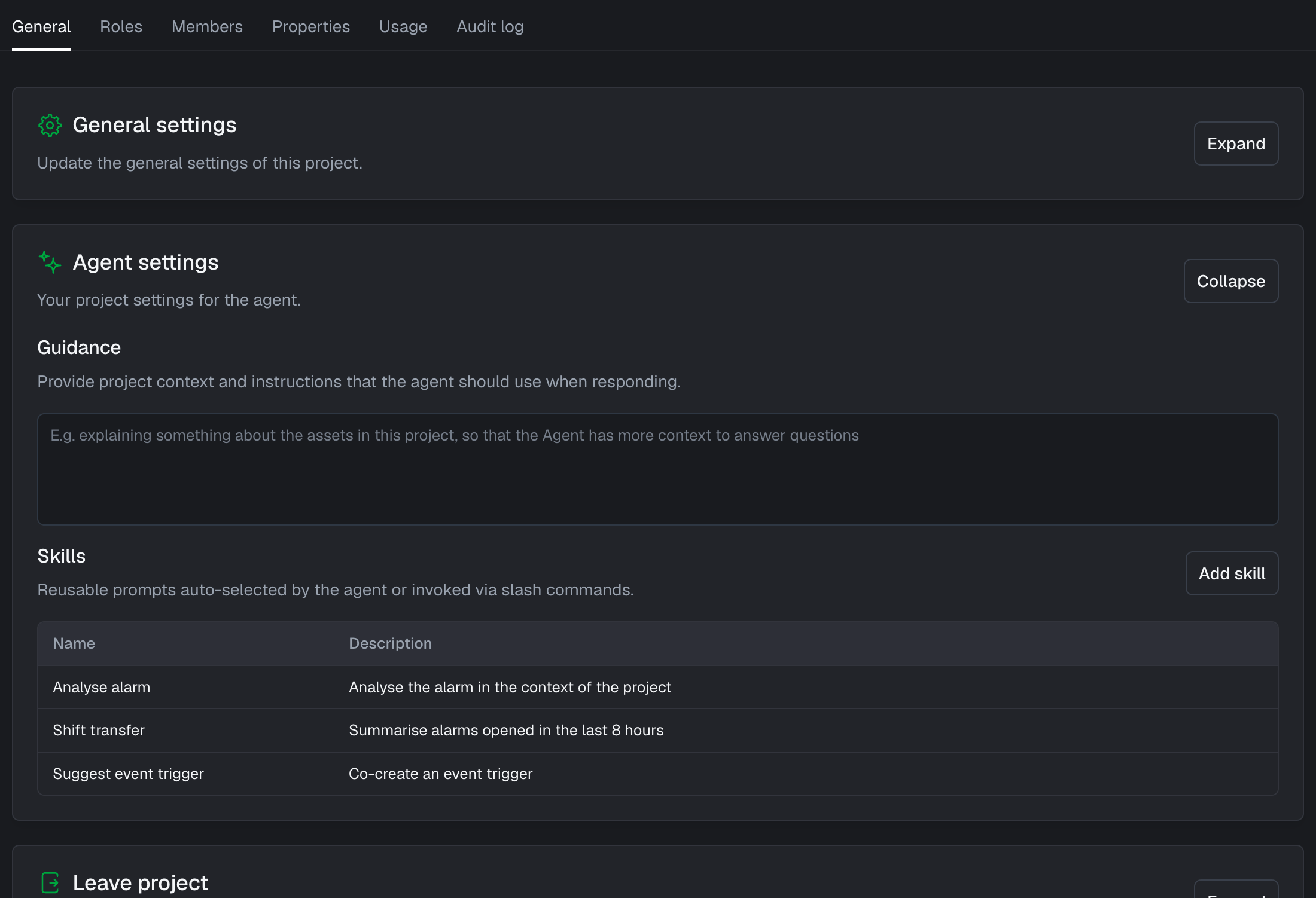
You can tune the agent for a project under Project settings > General > Agent settings.
Guidance
Use guidance to give the agent project context and instructions it should use in every response. For example, explain how your installations are organized, what certain metrics mean, or how you want answers to be formatted.
Skills
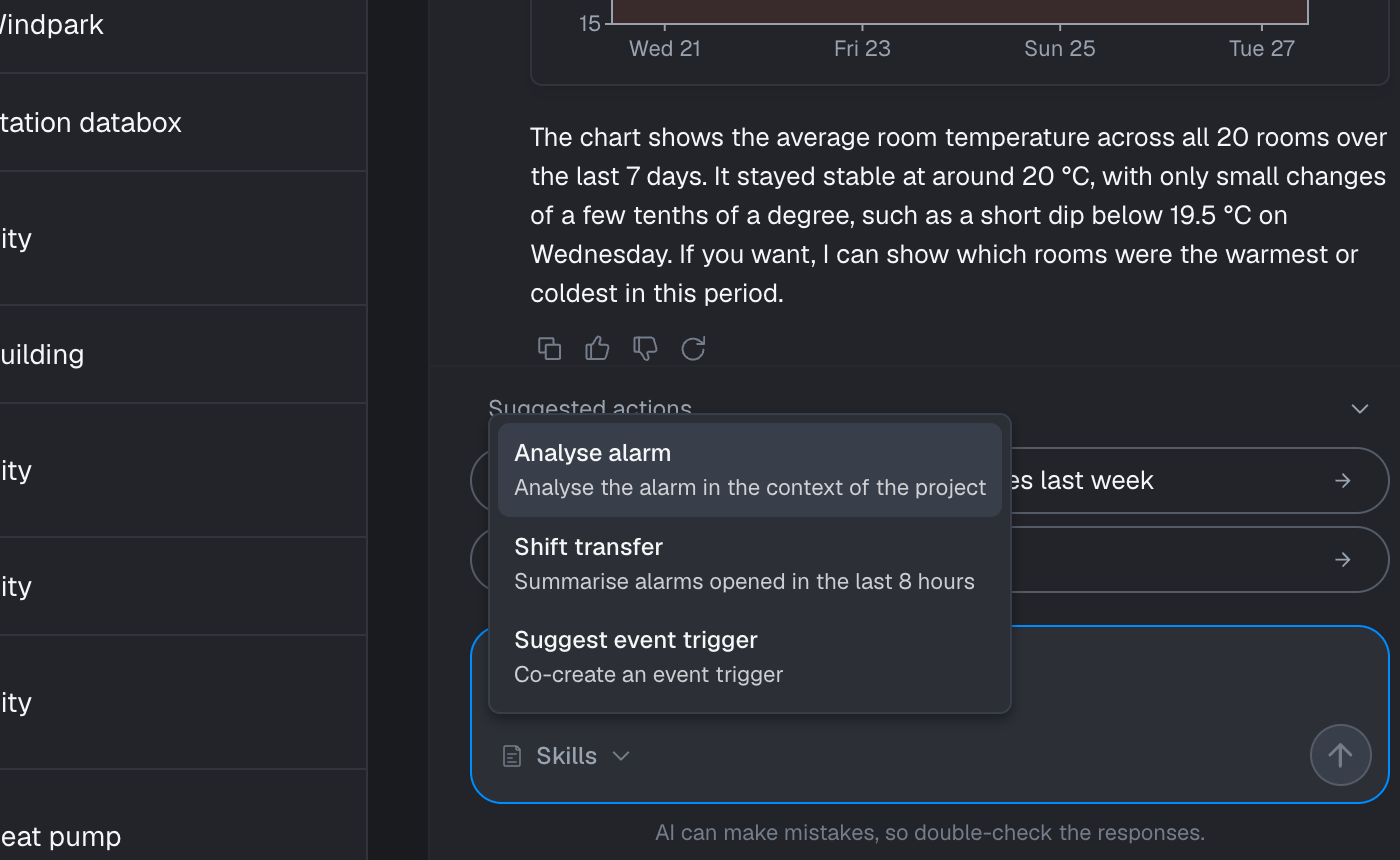
Skills are reusable prompts for tasks you do often, such as writing a work order summary in a fixed format. Add a skill with the plus button and give it a name and description. To use a skill, pick it from the Skills menu below the input field, or type / in the input field to choose one from a list.
Good to know
The AI Agent uses AI to generate its answers. While it aims to be accurate, it can make mistakes. Always verify important information, such as the data behind a conclusion, before acting on it.